Home › Guides › Find MIDI files
Find MIDI or MusicXML files and import them
Published 6 November 2026
A score gives a far more faithful level than an audio file, because every note is already written down. This guide shows where to find one and how to go from a web page to a playable level, step by step.
Which file to choose
- MIDI:
.midor.midifiles. - MusicXML:
.musicxml,.xmlor.mxlfiles. - PDF: not compatible. A PDF score is a picture for humans, not a list of notes the game can read.
Any piece works: a single instrument is not required, and the game lets you choose the tracks when you import. It is only a tip for a first try, because the melody often stands out better.
Tutorial: from MuseScore to your level
We use MuseScore as the example because it has the largest catalogue. The pictures show Beethoven’s Für Elise. The red mark shows where to click.
Step 1: Search for your piece
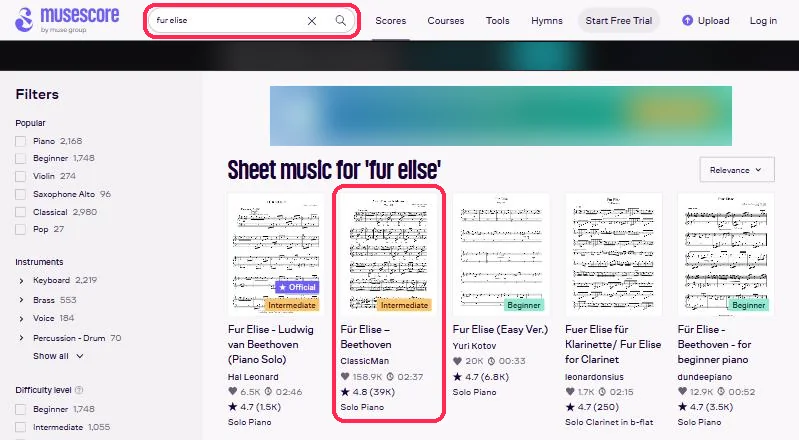
Go to musescore.com, type the title in the search field at the top of the page and confirm. In the results, click the score you want. The label under the title, such as Solo Piano, only tells you the instruments: it is not required.
Step 2: Open the download
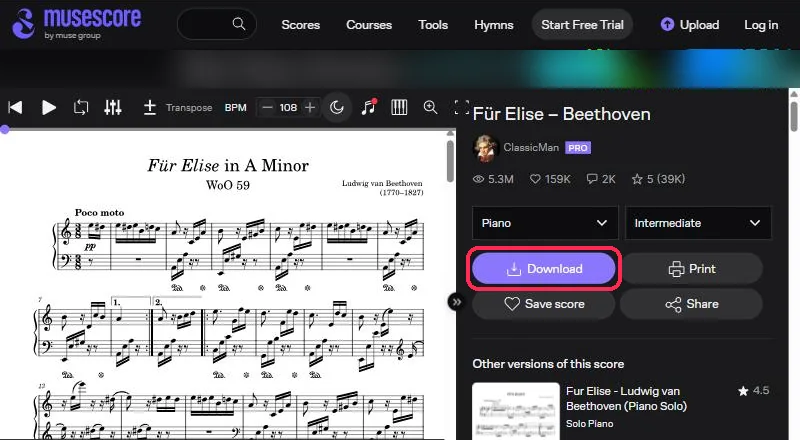
On the score page, listen with the play button to check that it is the right version, then click the Download button on the right.
Step 3: Choose MIDI or MusicXML
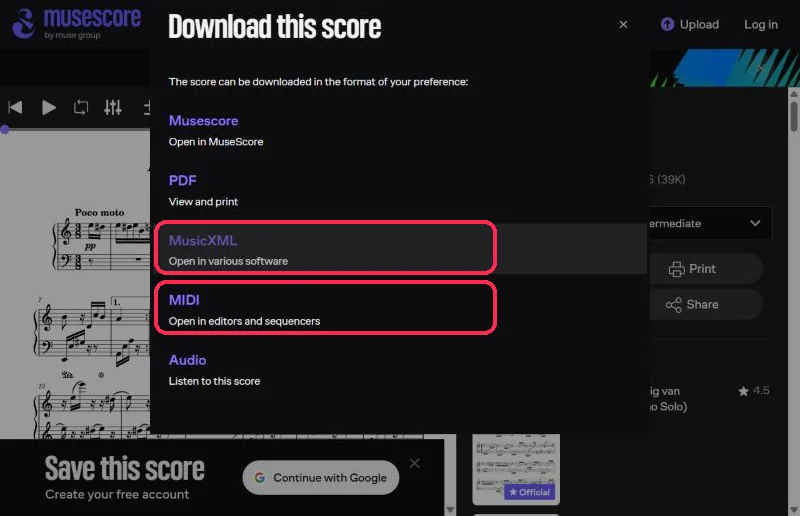
A window offers several formats. Choose MIDI or MusicXML. Do not take PDF, MuseScore or Audio: those files cannot be imported as a score.
Step 4: Sign in if the site asks
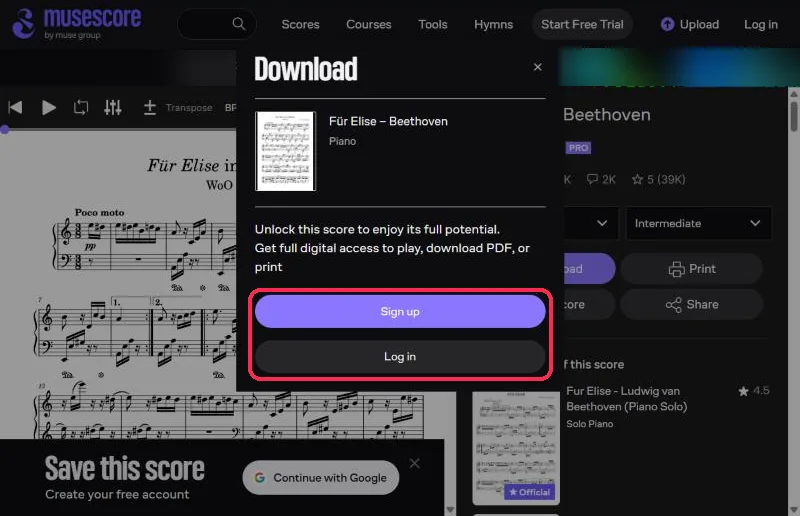
MuseScore asks for an account to download: choose to sign up or to log in. A free account is enough for many scores, like the one in our example, but some are paid. If so, look for another version of the piece or try one of the sites listed below.
Step 5: Find the file
The file usually lands in the Downloads folder of your computer or phone. Check that it ends in .mid, .midi, .musicxml, .xml or .mxl.
Step 6: Load it into the game
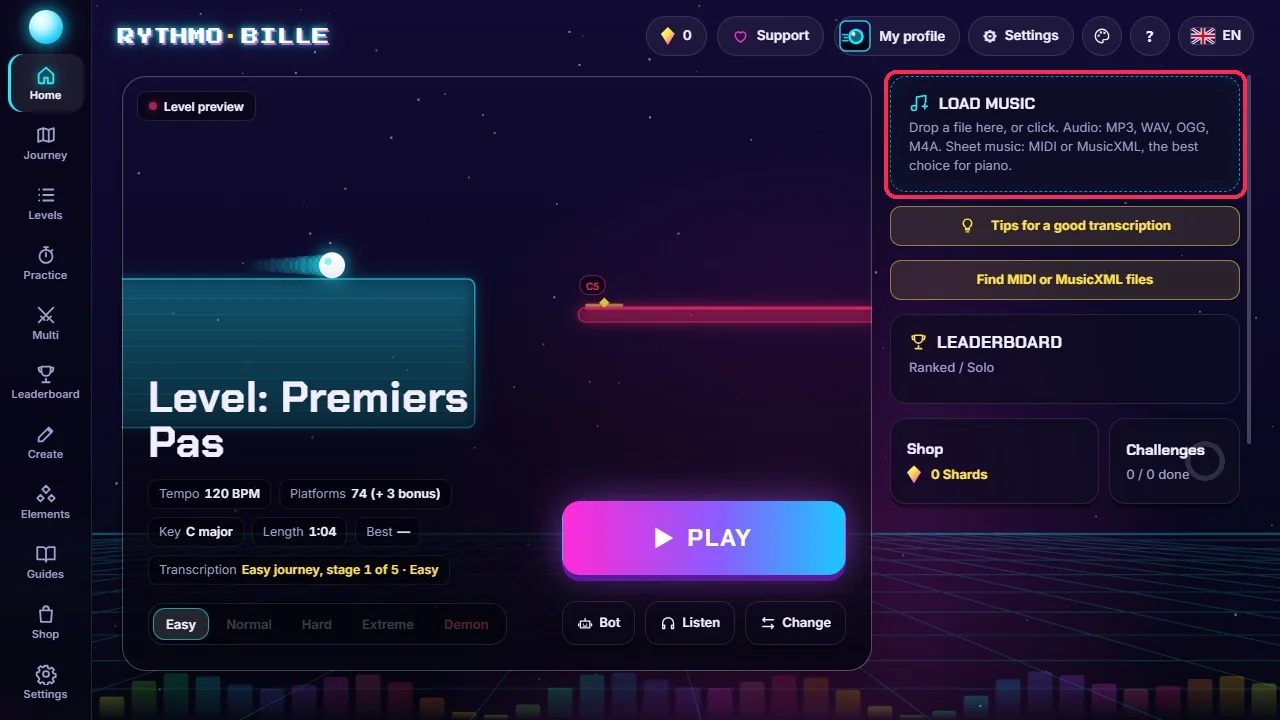
Open Rythmo Bille. On the home screen, click LOAD MUSIC and choose your file, or drag it onto that area.
Step 7: Choose the tracks and create the level
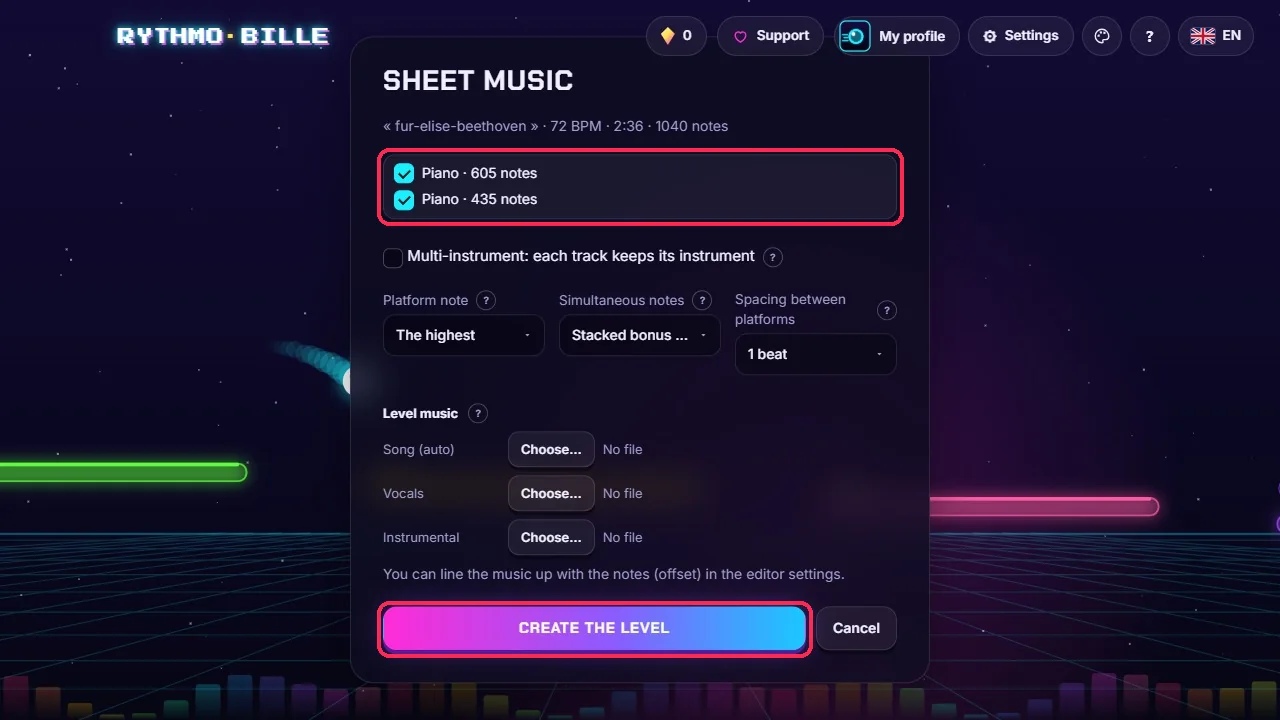
The game lists the tracks of the score: keep the ones you want to hear and play. The Platform note setting on “The highest” usually follows the melody. A wider spacing between platforms, such as “2 beats”, gives a calmer level. Then click Create the level.
Step 8: Start your game
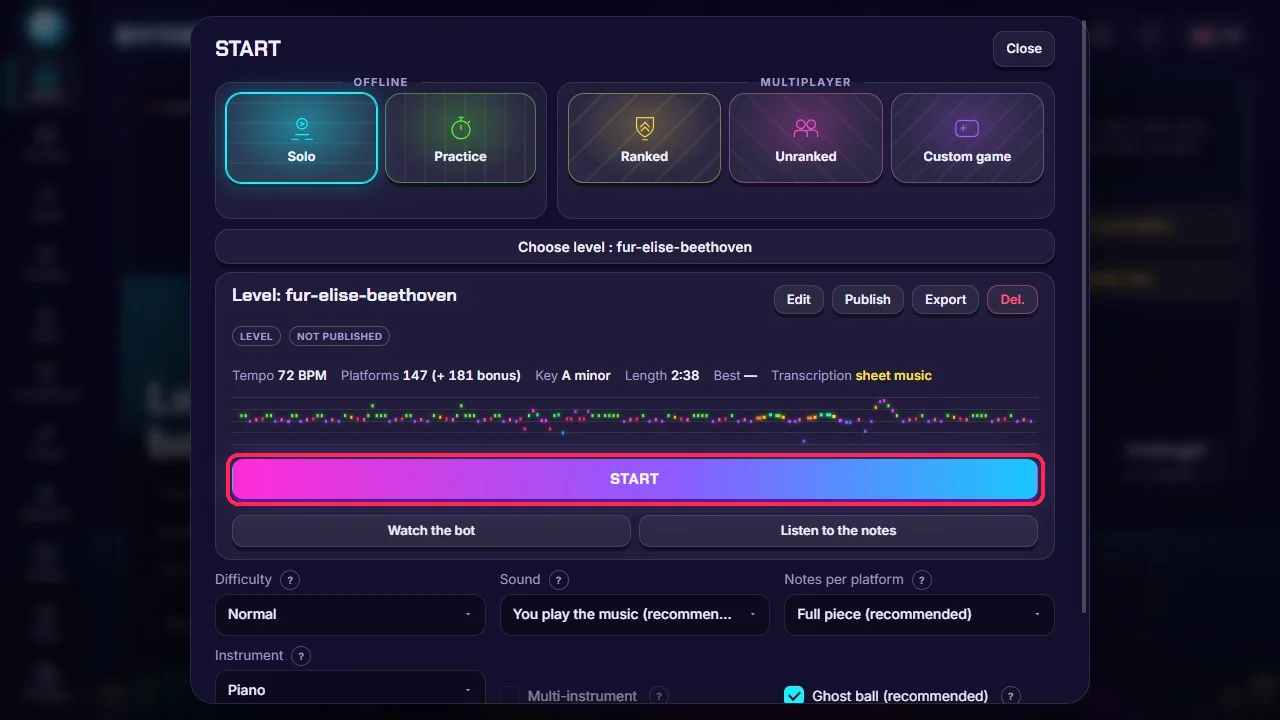
Your level is loaded. Press Play, then START. It stays in My levels, where you can also change it in the editor.
Other sites to search
Score libraries
- MuseScore (recommended) — Scores created and shared by the community.
- Sheet.Host — Scores shared as MIDI, MusicXML and MuseScore files.
- Musicalion — A large score library, with MIDI and MusicXML downloads.
MIDI libraries
- MIDIWorld — A collection of MIDI files in many styles.
- FreeMidi — MIDI files shared by users.
- BitMidi — A library of MIDI files.
- Mutopia Project — Free scores, mainly classical, with MIDI files.
Playing and publishing: think about rights
A level created from a score stays in your browser until you publish it. Before you publish it, check the licence shown on the score page.
An old work can be free while its arrangement is not. Publish only what you are allowed to share: your own music, the public domain, or a licence that permits it.
If you do not like the result
- “No usable note in these tracks”: tick another track. Some tracks contain only drums or silence.
- The level is too fast: import again with a spacing of “2 beats” or “1 bar”.
- The melody is not recognisable: keep only the melody track, with “The highest”.
- You want to fix some notes: open the level in the editor.
For every setting, also read the Import your music page.